
If you hit missing MSI/MSP issue, suggest them to try the FixMissingMSI tool developed by Simon https://blogs.msdn.microsoft.com/psssql/2018/01/24/sql-setup-toolsuite-introduction-1-fixmissingmsi/
Here is how SQL Server work with MSI/MSP files, you may need to use this skill to troubleshoot if the FixMissingMSI does not resolve the issue.
MSI and MSP files are stored in c:\windows\installer folder during patching and SQL installation, and will be used in next SQL Server patching/uninstallation.
The patching/uninstallation fails if the files are not there.
For example, the file 47f929.msi was removed in c:\windows\installer. Then how to restore the file?
Here are the steps
1.Search the key word ’47f929.msi’ under the HKEY_LOCAL_MACHINE\SOFTWARE\Microsoft\Windows\CurrentVersion\Installer\UserData\S-1-5-18\Products\.This registry is where MSI files stored .
2.Then we get the Productcode 39ABAC180C729DB4B9E522C7675BF964.
3.The original file is stored in different location but under the same Productcode

4.Use the Productcode to search HKEY_LOCAL_MACHINE\SOFTWARE\Classes\Installer\Products\
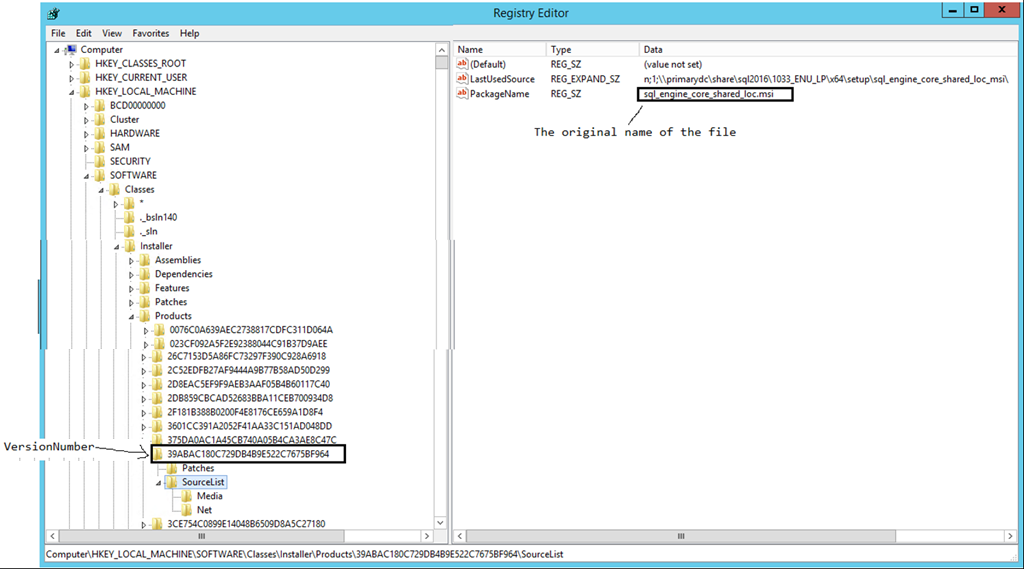
5.The name is stored at PackageName of SourceList
6.Now we are able to target the file by combining the DisplayVersion+LastUsedSource+PackageName.
What about MSP files
It’s little bit complex to handle the MSP files.
1.MSP links to MSI.
2.ALL MSI has 0 or more MSP files.

3.Search the Productcode 9B8D98DD6CF467A4D98BAFDCC80F2086 under HKEY_LOCAL_MACHINE\SOFTWARE\Microsoft\Windows\CurrentVersion\Installer\UserData\S-1-5-18\Products\VersionNumber\Patches. Please note ‘InstallProperties’ is for msi file, the ‘Patches’ is for MSP.
4.The Productcode is useful.
5.Use the keyword to search HKEY_LOCAL_MACHINE\SOFTWARE\Microsoft\Windows\CurrentVersion\Installer\UserData\S-1-5-18\Patches, which tells you the cache file name
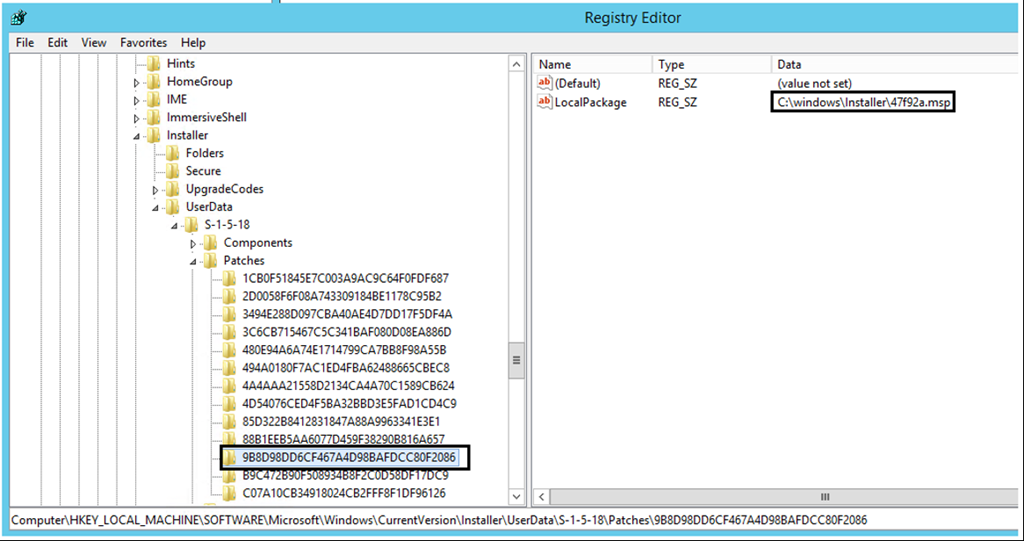
6.Use the Productcode to search HKEY_LOCAL_MACHINE\SOFTWARE\Classes\Installer\Patch\
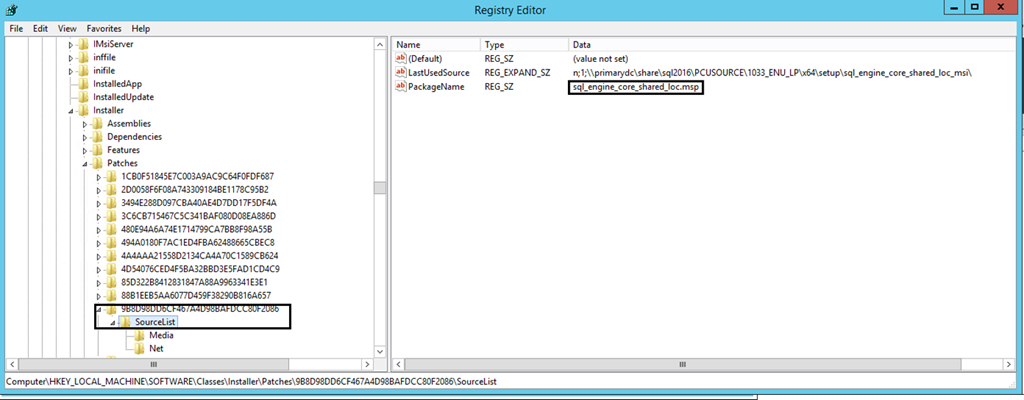
You will get the original file name.
 SQL Server
That is not a VersionNumber – that is a compressed ProductCode. To see how to derive the Compressed GUID from the ProdutCode, look for the GetCompressedGuid in ROIScan.vbs script
LikeLike
Hi Ed, Thanks for the tip, have made the change.
LikeLike